
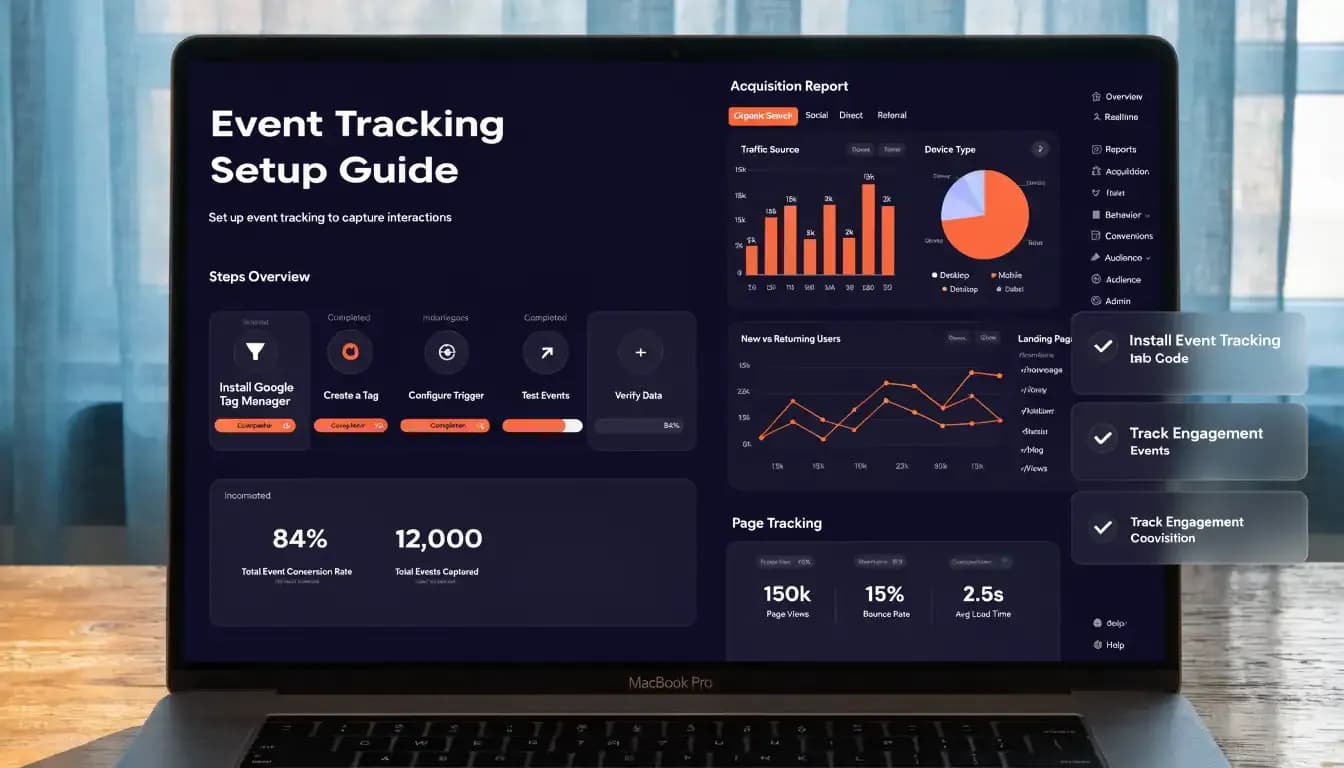
GA4 looks like Google Analytics. It isn't. The reports you trusted in Universal Analytics mean something different here — and some of them are gone entirely.
Quick Answer: Google Analytics 4 (GA4) is Google's current analytics platform, replacing Universal Analytics in July 2023. Unlike its predecessor, GA4 uses an event-based data model that tracks user actions across websites and apps in a single property. It gives marketers deeper insights into the full customer journey — from first visit through conversion — with privacy-first measurement built in from the ground up.
If you've been putting off learning GA4 because Universal Analytics felt familiar and comfortable, you're not alone. The interface looks different, the metrics have new names, and some reports you relied on have moved or changed entirely. But here's the truth: once you understand GA4's logic, it's actually more powerful than what came before.
This google analytics 4 tutorial covers everything you need — from creating your first property to reading reports and setting up custom events. Whether you're new to analytics or migrating from Universal Analytics, this ga4 tutorial 2026 will get you up to speed fast.
What Is Google Analytics 4 — And Why Did Google Replace Universal Analytics?
Google Analytics 4 is Google's flagship web and app analytics platform. It launched in October 2020 and became the default analytics solution in 2023, when Universal Analytics (UA) permanently stopped processing new data on July 1, 2023.
The shift wasn't just a cosmetic refresh. GA4 represents a fundamentally different way of thinking about user data:
- Universal Analytics measured visits through a session-and-pageview model. Every interaction was tied to a session (a group of pageviews within a time window).
- GA4 uses an event-based model. Every interaction — a pageview, a scroll, a button click, a purchase — is treated as an event with associated parameters.
This distinction matters because event-based tracking is far more flexible. You can capture exactly what users do on your site without being constrained by the session framework. GA4 also handles cross-device tracking better, connecting user journeys across mobile apps and websites in one property.
Two other reasons Google made the switch:
- Privacy regulations. GDPR, CCPA, and the phase-out of third-party cookies made session-based cookie tracking increasingly unreliable. GA4's event model is designed to work well even with incomplete data, using modeling to fill gaps.
- App + web measurement. If you run both a website and a mobile app, GA4 tracks them together in a single property — something Universal Analytics couldn't do natively.
How to Set Up Google Analytics 4 — Step-by-Step GA4 Setup Guide
Getting GA4 running takes about 15–20 minutes if you're starting fresh. Here's the full ga4 setup walkthrough.
Step 1: Create a GA4 Property
- Go to analytics.google.com and sign in with your Google account.
- Click the Admin gear icon in the bottom-left corner.
- In the Account column, click Create Account (if you're starting fresh) or select your existing account.
- In the Property column, click Create Property.
- Enter your property name (e.g., "My Website – GA4"), select your reporting time zone and currency, then click Next.
- Fill in your business details (industry category, business size) and click Create.
You now have a GA4 property. Next, you need to tell GA4 where to collect data from.
Step 2: Install GA4 on Your Website
After creating the property, GA4 prompts you to set up a data stream. Select Web, enter your website URL and stream name, then click Create stream.
You'll receive a Measurement ID (format: G-XXXXXXXXXX). This is what you add to your site.
You have two installation options:
Option A — Direct (gtag.js): Add the GA4 snippet to the <head> section of every page on your site. GA4 provides the exact code in your data stream settings — just copy and paste.
Option B — Google Tag Manager (recommended): If you already use GTM, create a new Google Analytics: GA4 Configuration tag, enter your Measurement ID, and set the trigger to "All Pages." This approach is more flexible and doesn't require modifying site code directly.
For most marketers without developer access, GTM is the better choice — it lets you manage all your tracking in one place.
Step 3: Set Up Data Streams
A data stream is a source of data flowing into your GA4 property. You can have multiple streams in one property:
- Web stream — your website
- iOS app stream — your iOS app (requires Firebase SDK)
- Android app stream — your Android app (requires Firebase SDK)
If you only have a website, you'll have one web stream. Navigate to Admin → Data Streams to view or add streams. Each stream has its own Measurement ID.
Step 4: Enable Enhanced Measurement
Enhanced Measurement is one of GA4's biggest time-savers. Once you enable it (it's on by default for new web streams), GA4 automatically tracks:
- Page views — every page a user visits
- Scrolls — when a user reaches 90% of a page
- Outbound clicks — links leaving your domain
- Site search — queries entered in your search bar
- Video engagement — play, pause, progress on YouTube embeds
- File downloads — clicks on PDFs, docs, and other files
To check or adjust these settings, go to Admin → Data Streams → [your stream] → Enhanced Measurement and toggle the events you want to track.
Understanding GA4 Reports — Your Complete GA4 Guide to Reading Data
Once your data starts flowing (typically within 24–48 hours), you'll spend most of your time in the Reports section. Here's what you need to know about each report category.
Overview Reports
The Home screen in GA4 provides a snapshot of recent activity: users, sessions, revenue (if applicable), and key events over the past 7 or 28 days. The Realtime report shows what's happening on your site right now — useful for verifying that tracking is working after installation.
Acquisition Reports — Where Your Traffic Comes From
Acquisition reports answer the most fundamental marketing question: how do people find your site?
Navigate to Reports → Acquisition to see:
- User Acquisition — how new users first discovered your site (first touch attribution)
- Traffic Acquisition — how all sessions arrive, including returning visits (last touch attribution)
GA4 uses session default channel groups to categorize traffic: Organic Search, Direct, Referral, Paid Search, Organic Social, Paid Social, Email, Affiliates, and more. If you run UTM-tagged campaigns, those parameters flow into these reports automatically.
Pro tip: GA4 now includes a Search Console integration that shows organic search queries directly inside acquisition reports — more on that later.
Engagement Reports — Sessions, Pages, and User Behavior
The Engagement section is where you understand what users do after they arrive. Key reports include:
- Events — a list of every event tracked on your site, with counts
- Conversions (Key Events) — the specific events you've designated as important (sign-ups, purchases, etc.)
- Pages and Screens — which pages users view most, with engagement metrics
- Landing Pages — the first pages users see, with session and conversion data
This is one of the most-used sections in any google analytics 4 guide because it directly maps to content performance and UX improvements.
Monetization Reports
If you run an e-commerce site, the Monetization section tracks purchases, revenue, and product performance. You'll need to implement GA4 e-commerce events (purchase, add_to_cart, view_item, etc.) either directly or via your e-commerce platform's GA4 integration (Shopify, WooCommerce, and most platforms have native GA4 support).
Retention Reports
Retention reports show how well you're holding on to users over time. The User Retention chart visualizes what percentage of new users from a given week or month return in subsequent periods. High retention signals that your content or product keeps people coming back — a healthy sign for any marketing team.
GA4 Key Metrics Explained — Sessions, Users, Engagement Rate, and More
GA4 introduced new metrics and renamed old ones. If you're coming from Universal Analytics, here's what changed and what each metric actually means.
Metric | What It Means |
|---|---|
Users | Unique visitors in the selected period (active users by default) |
New Users | First-time visitors |
Sessions | Individual visits to your site; a new session starts after 30 minutes of inactivity |
Engaged Sessions | Sessions lasting 10+ seconds, with 2+ page views, OR with at least one key event |
Percentage of sessions that were engaged (Engaged Sessions ÷ Total Sessions × 100) | |
Events | Any tracked user interaction (page_view, scroll, click, purchase, etc.) |
Key Events (Conversions) | Events you've manually marked as important business goals |
Average Engagement Time | Average active time users spent on your site per session |
The most important shift: GA4 replaced bounce rate with engagement rate as the primary engagement signal. A high engagement rate (typically 60–80%+ for content sites) means users are finding value. A low one suggests landing pages or targeting need work.
Bounce rate still exists in GA4 — it's simply the inverse of engagement rate (non-engaged sessions ÷ total sessions). You can add it to reports manually.
How to Set Up Custom Events in GA4 — Beyond Enhanced Measurement
Enhanced Measurement handles common interactions automatically, but you'll often need to track business-specific actions — newsletter sign-ups, chatbot interactions, specific CTA button clicks, or form completions that don't trigger a page load.
There are three ways to create custom events in GA4:
1. Create Events Inside GA4 (No Code)
GA4 lets you create new events based on existing events without touching your site code:
- Go to Admin → Events → Create Event
- Name your new event (e.g.,
newsletter_signup) - Set matching conditions — for example, trigger when
event_name = clickANDlink_text = Subscribe - Save and test in Realtime reports
2. Use Google Tag Manager
For more control, create a custom event tag in GTM:
- Create a new tag: Google Analytics: GA4 Event
- Enter your Measurement ID and event name (e.g.,
form_submit) - Add any event parameters you want to capture (e.g.,
form_id,form_name) - Set a trigger — e.g., "Form Submission" trigger on a specific form
GTM gives you access to the full Data Layer, which means you can capture rich context about each event without custom code.
3. gtag() Directly in Code
Developers can fire events directly using the gtag() function:
gtag('event', 'sign_up', {
method: 'email',
content_type: 'newsletter'});
Once events are flowing, mark the most important ones as Key Events (formerly "Conversions") in Admin → Events by toggling the "Mark as key event" switch. These events then appear in conversion reports and can be used as smart bidding goals in Google Ads.
GA4 vs Universal Analytics — What Changed and Why It Matters
If you're migrating from Universal Analytics or simply trying to make sense of why reports look different, here's the key comparison:
Feature | Universal Analytics (UA) | Google Analytics 4 (GA4) |
|---|---|---|
Data model | Session + pageview based | Event + parameter based |
Tracking scope | Website only per property | Web + app in one property |
Bounce rate | Core metric (% single-page sessions) | Replaced by Engagement Rate |
Goals/Conversions | Goals (up to 20 per view) | Key Events (unlimited) |
Custom dimensions | Up to 20 (hit-level) or 200 (session/user) | Up to 50 event-scoped, 25 user-scoped |
Data retention | Up to 50 months | 2 months default (up to 14 months with setting change) |
Views | Multiple views per property | No views — use Data Filters and comparisons instead |
Attribution | Last-click default | Data-driven default (machine learning) |
Privacy | Cookie-dependent | Works with consent mode + modeling |
Important: Change your data retention setting to 14 months immediately after setup. Go to Admin → Data Settings → Data Retention and set it to 14 months — the default 2-month setting limits how far back your Exploration reports can look.
Common GA4 Mistakes to Avoid
Even experienced marketers make these errors when setting up or using GA4. Save yourself the frustration:
1. Not extending data retention. The default 2-month retention cuts off your historical data access for custom explorations. Change it to 14 months on day one.
2. Counting internal traffic. If you and your team visit your own website regularly, create an IP-based Data Filter (Admin → Data Filters) to exclude internal traffic. Otherwise your engagement metrics will be inflated.
3. Ignoring the Debug View. When testing new events, use Admin → DebugView to confirm events are firing correctly in real time. Don't wait 24 hours to discover a tag isn't working.
4. Skipping Google Signals. Enable Google Signals (Admin → Data Settings → Data Collection) to get demographic data and cross-device reporting for signed-in Google users. Without it, you miss valuable audience insights.
5. Not linking Google Ads. If you run paid search campaigns, link GA4 to your Google Ads account (Admin → Product Links → Google Ads Links). This enables import of GA4 key events as Google Ads conversion actions and unlocks audience targeting.
6. Treating "not set" as normal. If you see "(not set)" as a channel or campaign value in reports, it usually means UTM parameters are missing or misconfigured. Audit your campaign links and fix UTMs before they skew your attribution data.
How to Connect GA4 with Google Search Console
Linking GA4 with Google Search Console is one of the highest-value integrations available — and it takes less than five minutes. Once connected, you can see organic search query data (clicks, impressions, average position) directly inside GA4 without switching between tools.
Step-by-Step: Linking GA4 and Search Console
- Open GA4 and click Admin (gear icon, bottom left).
- In the Property column, scroll down to Product Links.
- Click Search Console Links.
- Click Link → Choose accounts.
- Select the Search Console property that matches your website.
- Select your web data stream and click Submit.
The link typically confirms within a few minutes. Once active, Search Console reports appear in GA4 under Reports → Acquisition → Search Console.
You'll see two new reports:
- Google organic search queries — the keywords driving clicks to your site, with impressions, clicks, CTR, and average position
- Google organic search traffic — landing pages with their associated organic performance data
This is a powerful combination: you can now see which organic keywords bring users to specific pages AND how those users behave on your site after they arrive (engagement rate, conversions). No more toggling between two dashboards.
For deeper SEO analytics, Allable's keyword research features can complement your Search Console data — showing search volume, difficulty, and competitive gaps alongside your actual ranking performance.
Allable also integrates with Google Search Console directly (as you can see in our guide to using Google Search Console), giving you a unified view of your organic presence alongside your keyword strategy.
FAQ: Google Analytics 4 Questions Answered
Is Google Analytics 4 free?
Yes, GA4 is completely free for standard use. Google also offers Google Analytics 360, the enterprise paid version, which includes higher data limits, SLAs, and BigQuery export at no per-query cost — but for the vast majority of marketers, the free version is more than sufficient.
How long does it take for GA4 to show data?
GA4 processes and displays data within 24–48 hours for standard reports. The Realtime report shows data within seconds, which is useful for verifying that your tracking code is working correctly after installation.
What happened to bounce rate in GA4?
Bounce rate still exists in GA4 but is no longer the primary engagement metric. GA4 replaced it with engagement rate (the percentage of engaged sessions). You can add bounce rate to custom reports, but engagement rate is generally more meaningful because it considers session quality rather than just single-page visits.
Can I use GA4 and Universal Analytics at the same time?
No. Universal Analytics stopped collecting new data on July 1, 2023 (standard properties) and July 1, 2024 (Analytics 360 properties). GA4 is now the only version of Google Analytics available. Any historical Universal Analytics data is no longer accessible through the standard interface.
How do I track form submissions in GA4?
If Enhanced Measurement is enabled and your form submits to a new page (thank-you page), GA4 will capture it as a page_view event automatically. For forms that submit without a page reload (AJAX forms), you'll need to create a custom event via Google Tag Manager, triggered by the form submission. Mark the event as a Key Event in Admin settings to include it in conversion reports.
What is the difference between Users and Active Users in GA4?
In GA4, the primary "Users" metric in most reports actually refers to Active Users — people who had an engaged session or triggered a key event. This is different from UA's "Users" metric, which counted all visitors regardless of engagement. The distinction matters when comparing GA4 numbers to historical UA data; GA4's user count will often be lower because it filters for active engagement.
How do I set up GA4 for a WordPress site?
The easiest method is to use the Site Kit by Google plugin, which handles GA4 installation, Search Console connection, and basic reporting directly in your WordPress dashboard. Alternatively, install Google Tag Manager via a GTM plugin (e.g., GTM4WP), then add your GA4 Measurement ID as a tag in GTM.
Conclusion: Use GA4 With Allable for Complete Marketing Intelligence
This google analytics 4 tutorial covered the full picture — from understanding GA4's event-based model and walking through the ga4 setup process, to reading key reports, configuring custom events, and connecting Search Console. GA4 is a powerful tool, but it's most valuable when it's part of a broader marketing intelligence stack.
GA4 tells you what happens on your site. To understand why it happens — and what to do next — you need keyword data, competitor insights, and content optimization working alongside it. That's exactly what Allable is built for.
Allable brings together keyword research, SEO audits, on-page optimization, competitor analysis, AI-powered content writing, and Google Ads planning in one platform — all designed to work alongside your GA4 data for a complete view of your marketing performance.
Ready to take your analytics further?
Try Allable free — no credit card required. Start with keyword research, connect your GA4 and Search Console data, and get actionable insights in minutes.